Results grid
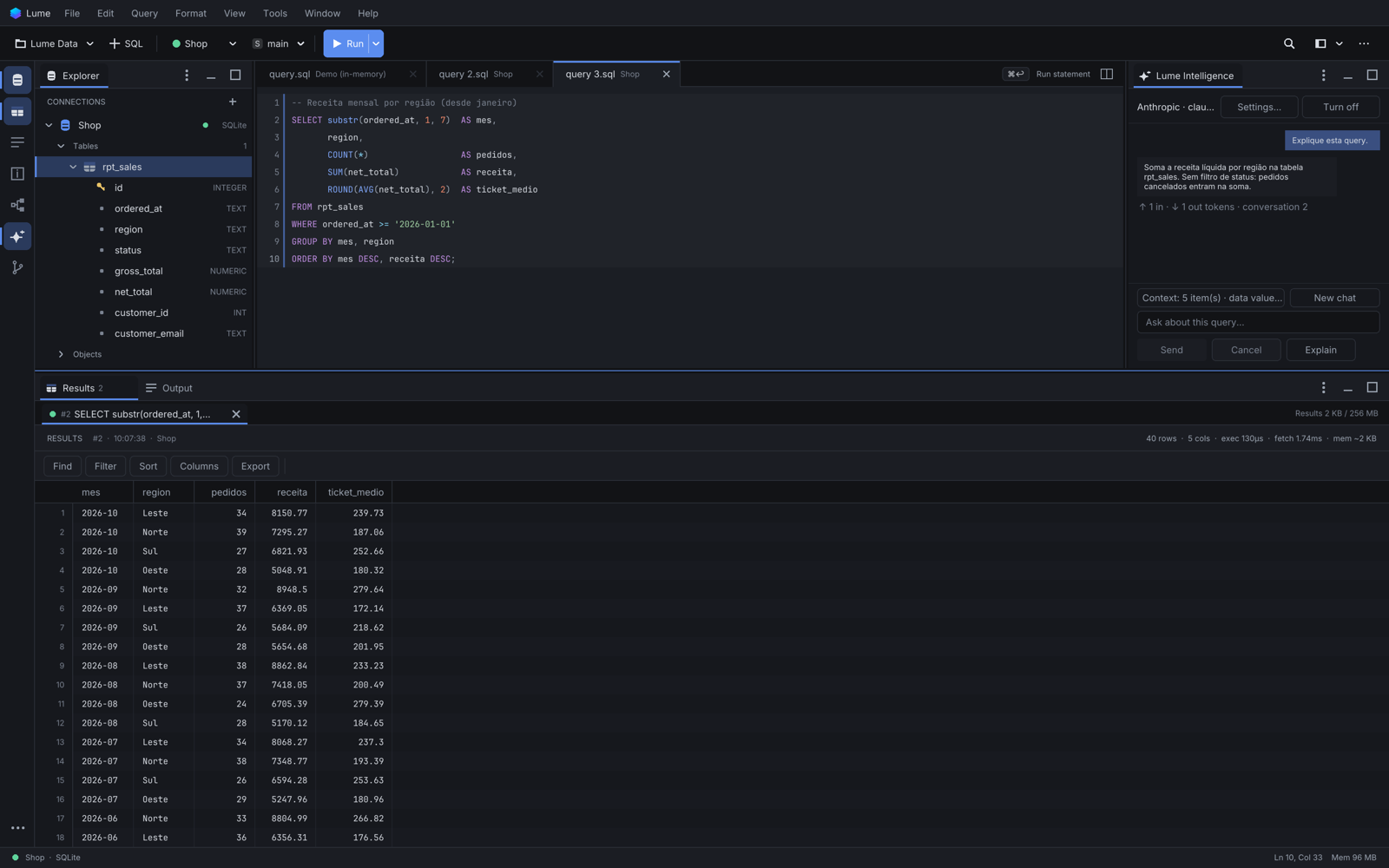
The Results panel (Cmd+2, or Cmd+J to show / hide) shows the rows of a run. It streams large results: only the visible rows and columns are drawn, so scrolling stays smooth with hundreds of thousands of rows.
Result tabs
- Each run opens or reuses a result tab. Running a query tab again replaces that tab's earlier results, except pinned ones and ones with unsaved edits. Run in New Tab (Option+Cmd+Return) always opens a new one.
- The header line says where the data came from: execution number, time and connection.
- Right-click a tab for Pin Tab, Rename Tab..., Re-run, Open SQL in Editor, Show Execution Output, Close Tab, Close Other Tabs, Close All Tabs.
- Option+Cmd+] / Option+Cmd+[ go to the next / previous result tab; Cmd+W closes it.
- A tab turns yellow ("stale") when its connection is closed. A tab discarded to free memory keeps its SQL and a Re-run query button.
Rows: loaded, never invented
A result first loads one batch (the fetch size). The header says "500 rows loaded · total unknown" while more are available; a total appears only when the result is complete. Fetch More Rows (Shift+Cmd+M) and Fetch All Rows read more from the same cursor.
Sort, filter, find and aggregates work on the loaded rows and say so ("sorted locally", "N of M rows · filtered locally"). For table previews, the header menu also offers the server-side versions (below).
Sort and filter
- Click a header to sort: ascending, descending, then back to the received order. Shift+click adds a second key; the header shows the priority. Sorting is type-aware, with NULL last.
- Filter: right-click a cell > Filter by This Value, or a header > Filter Column.... Operators depend on the type; filters show as chips with × and Clear all. With two or more filters, choose all or any.
- Server side (table previews): Sort on Server, Ascending / Descending and Filter on Server... re-run the preview with
ORDER BY/WHEREon the server. They show as green Server chips; Clear Server Sort and Filter removes them.
Find
Cmd+F (Query > Results > Find in Results) searches the loaded rows, case-insensitive. Enter / Shift+Enter go to the next / previous hit, Esc clears. NULL never matches.
Selecting and copying
- Click a cell, click a row number for the row, Cmd+click a header for the column, Shift+click or Shift+arrows or drag for a rectangle. Cmd+A selects all.
- The footer shows aggregates of the selection: count and non-null, plus sum, average, min and max for a single numeric column.
- Cmd+C copies the selection as tab-separated text (NULL stays
NULL). Copy with Headers, and Copy as > CSV, JSON, Markdown, SQL INSERT or TSV with displayed values.
Columns and layout
- Drag a header's edge to resize, double-click it to fit. Drag a header to reorder.
- Header menu: Hide Column, Show All Columns, Freeze Columns Up to Here / Unfreeze Columns, Wrap Text in Rows.
- Columns... (Shift+Cmd+C) lists every column with checkboxes, order, frozen count and wrap, plus Reset layout.
- The layout is remembered per connection and set of columns: another query with the same columns gets it too.
Display formats
The Format menu changes how values are shown, never what is stored or exported (unless you export displayed values):
- Numbers: Thousands Separator; Decimals: As Stored, 2 or 4.
- Dates: ISO (As Stored), DD/MM/YYYY, MM/DD/YYYY.
- Time Zone: As Stored, UTC, Local (only for timestamps that carry an offset).
A chip shows the active formats, with × to reset. Settings > Results & Format holds the same options.
Looking at a value
- View Value (Enter in a read-only result, or double-click): the full value, its type, size, and for timestamps the offset and precision. Copy raw and Copy formatted.
- JSON values get a Tree view with folding; invalid JSON says where it breaks. JSON
nulland SQL NULL are shown differently. - Binary values show their size, a hex dump and Base64. PNG, JPEG and BMP images are previewed (interlaced PNG and progressive JPEG are not).
- Geometry (WKT / WKB, PostGIS form) is drawn as stored, with type, SRID and point counts. There is no base map and no reprojection.
- Links:
http(s)values offer Open Link in Browser. Nothing opens by itself. - Inspector / Record View (Cmd+4): name, type and value of every column of the selected row, beside the grid.
Foreign keys
On a table preview, a cell of a foreign key column offers Go to <table> where <column> = <value>: it opens the referenced row in a new tab.
Charts, transpose, compare
Under Chart, Transpose, Compare in the cell menu:
- Chart Selection...: Bars, Lines or Pie from the selection. The first selected column is the label, numeric columns to its right the values (up to 4), at most 500 points. The chart says it covers loaded rows only.
- Transpose Selected Rows: one column per selected row (up to 200), in a new tab.
- Compare with Another Tab: aligns two results on the right-clicked column and opens a tab with a
diffcolumn (same / changed / only in A / only in B).
Keyboard
Arrows move, Shift extends, Tab / Shift+Tab move along the row, Home / End go to the first / last column, Cmd+Home / Cmd+End to the first / last row, Page Up / Down by a page. Shift+F10 (or the Menu key) opens the cell menu; Esc clears the selection.
See also Editing data and Exporting results.