Table Designer
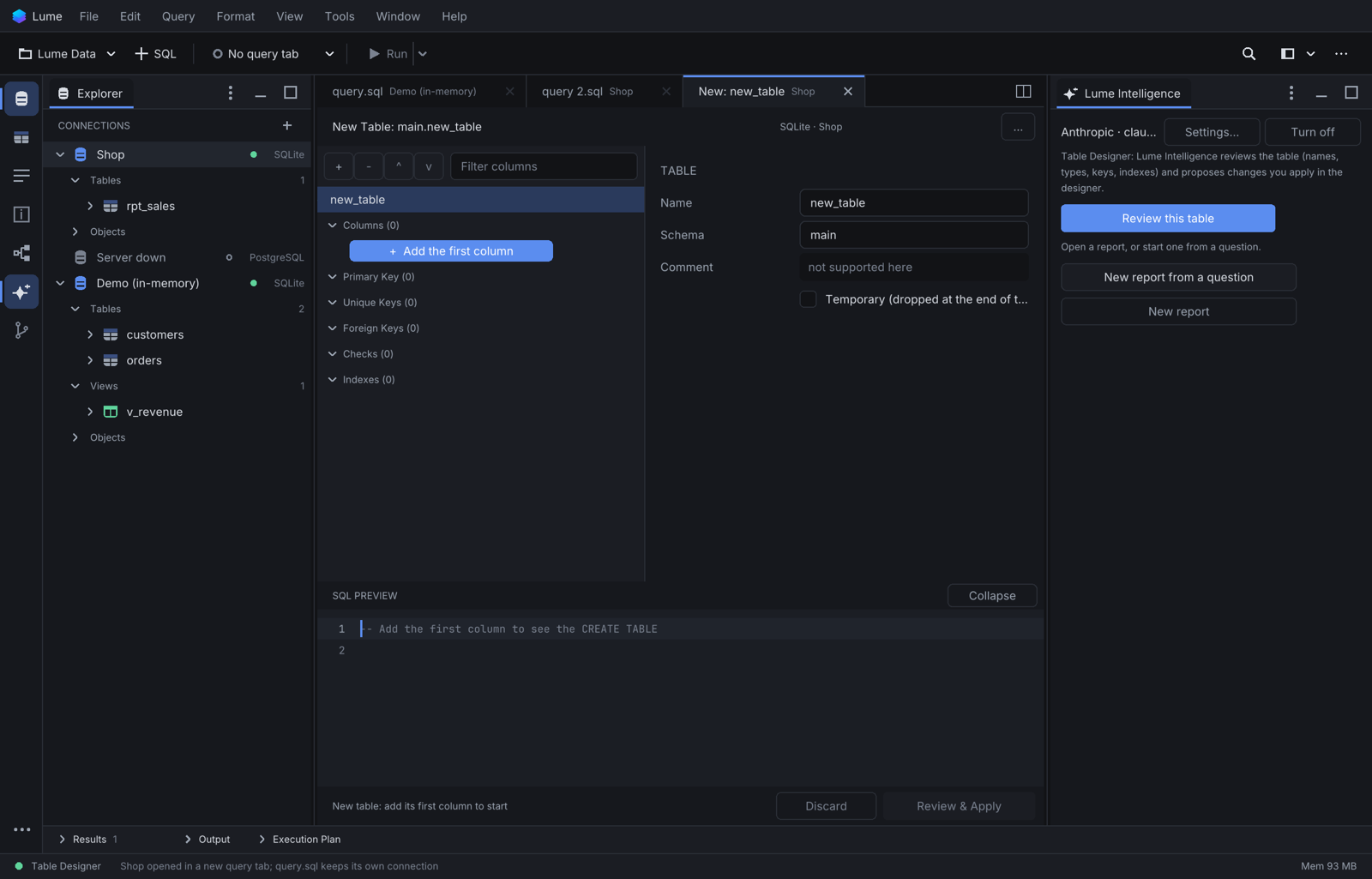
The Table Designer edits a table's structure: columns, keys, checks and indexes. Rows are edited in the results grid. Nothing touches the database until you choose Review & Apply:
draft → validation → SQL preview → review → apply → read back
Available for SQLite, PostgreSQL, MySQL, MariaDB, SQL Server and Oracle.
Open it
- Right-click a table > Modify Table....
- Right-click a schema > New > Table... (or a connection > New Table...).
- From an execution plan's index candidate, or a table proposed by Lume Intelligence: both open as a draft here.
The designer is a tab: you can keep working elsewhere. A dot on the tab means unsaved changes; closing asks Save Draft, Discard or Cancel. The designer's menu holds Copy SQL, Open SQL in Editor, Save as Migration (.sql), Copy CREATE DDL, Review with Lume Intelligence, Undo / Redo, Save Draft, Discard Draft and Reload from Server.
Edit
The tree on the left has groups: Columns, Primary Key, Unique Keys, Foreign Keys, Checks, Indexes. Right-click a group to add one (Add Column, Add Foreign Key, Add Index...), right-click an item to move, duplicate or remove it. Select an item to edit its properties on the right.
- Columns: name, data type (the database's types, or free text), not null, default, identity, generated (stored / virtual where supported), comment, collation.
- Key columns (primary, unique and foreign keys, indexes) are picked, not typed: Choose a column ▾ (then Add column ▾) lists the table's columns not yet in the key; each picked column has ↑ / ↓ to change its position and × to remove it. For an index, each column also toggles ASC / DESC.
- Foreign keys: in References, type part of a table name and pick it from the suggestions (the connection's tables); the referenced columns are filled from that table's primary key, and each one can be changed with its own column menu. On delete / On update (Oracle has no ON UPDATE), deferrable where supported.
- Checks: an expression, optionally checking existing rows when added.
- Indexes: unique, method, included columns and a partial Where where supported.
- Suggest fills a name following
{table}_{columns}_{kind}. - Cmd+Z / Shift+Cmd+Z undo and redo, one step per field; Delete removes the selected item.
Existing columns cannot be reordered, except on MySQL / MariaDB.
SQL preview
The bottom pane always shows the exact statements that would run, in order, recomputed as you type. Each step that may lose data, lock or rewrite the table, commit implicitly or check existing data carries a warning. Copy SQL and Open SQL in Editor give you an editable copy.
Review & Apply
Review & Apply shows the plan, the risk level, what can be rolled back and the dependents that break or go with the change (never CASCADE). On PROD you type the table name. Read-only connections are refused.
Then Lume:
- checks the table did not change on the server since you opened it;
- runs the steps (in one transaction where the database allows it);
- confirms a rollback only when the server confirms it. On Oracle, MySQL and MariaDB, where DDL commits by itself, a failed plan lists the steps that stayed applied;
- reads the table back and refreshes the Explorer and completion.
Things to know per database:
- SQLite: changes it cannot make in place are done by rebuilding the table (with its triggers and indexes, and a foreign key check), only after you agree.
- PostgreSQL: changing a column's type that has a default drops and restores the default around the change.
- MySQL / MariaDB: adding a NOT NULL column without a default fills existing rows with the type's implicit default; the review says so.
Drafts and migrations
- Unfinished work is kept as a draft, saved every few seconds; when you reopen the table, Lume compares the draft with the server.
- Save as Migration (.sql) (designer menu) writes the SQL to a file in Lume's migrations folder without running it.
- Discard Draft and Reload from Server (designer menu) start over; Discard on the toolbar reverts the draft to the table as loaded.
Other table actions (Explorer)
- Generate SQL > CREATE opens the table's DDL. Copy CREATE DDL is in the designer.
- Duplicate Structure... creates a new table with the same columns and keys (constraint names cleared).
- Dependencies... lists what depends on the table.
- Drop Table... shows the dependents and the statement (never
CASCADE) and always asks first. - Review with Lume Intelligence (designer menu) opens the table's DDL in a query tab and asks the assistant to review it.
Not available yet
Partitioning (partitioned tables open read-only), owner and grants, choosing a tablespace, editing storage options, column templates, a dry run, a Cancel button during Apply, and type / collation lists read from the server.